Find answers to common questions or get in touch if you need help.
Tap the "+" button in your library to import M4B files from your device or iCloud Drive. If you have Audiobookshelf configured, you can also browse and download from your server.
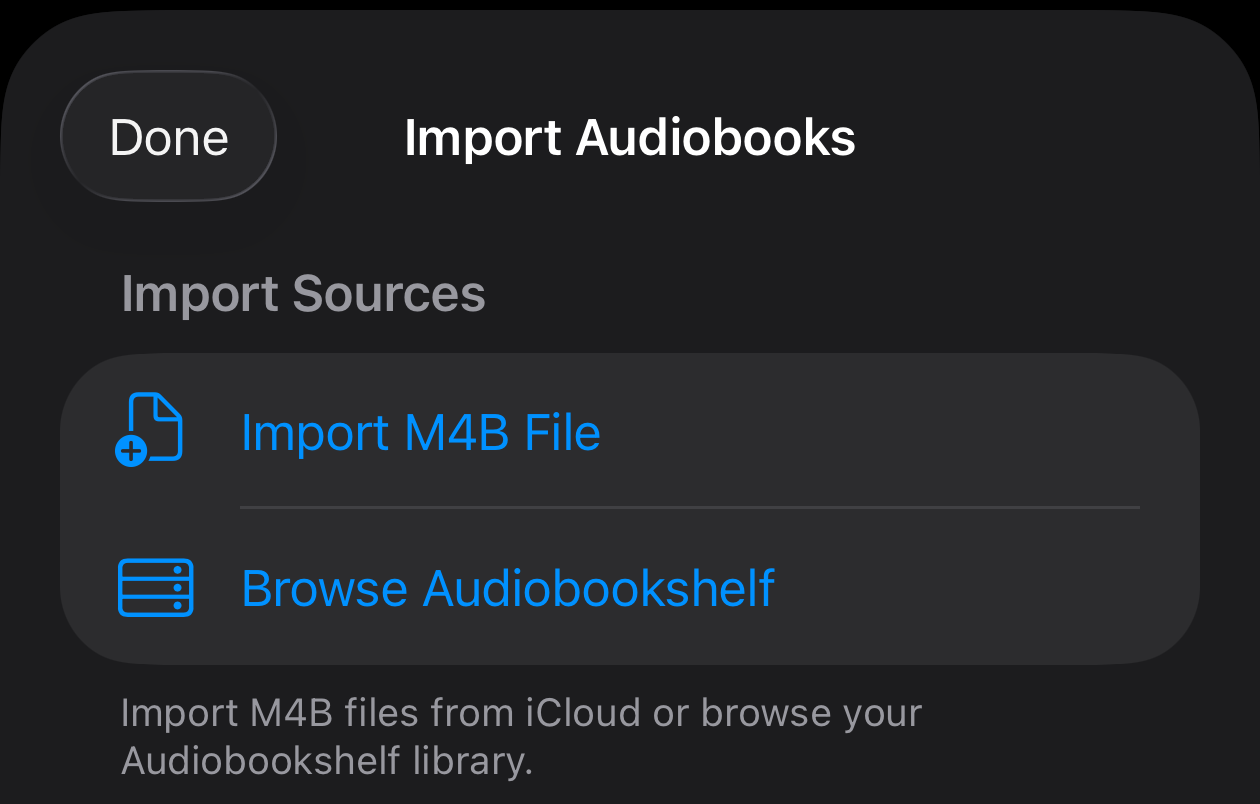
Listen This supports M4B and M4A audiobook files. These formats preserve chapter information and are widely used by audiobook providers.
Your audiobook library and playback progress sync automatically via iCloud. Start listening on your iPhone and continue on your iPad or Apple Watch. Make sure iCloud is enabled for Listen This in your device settings.
Open the Watch app, select an audiobook, and tap the download button. Once downloaded, you can listen offline during workouts or walks without your iPhone nearby.
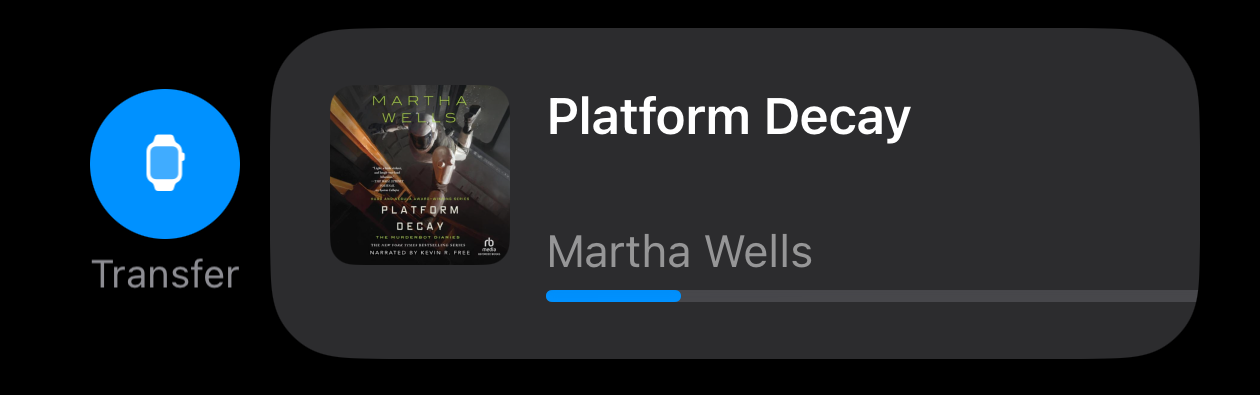
For the fastest transfer, swipe left on an audiobook in your iPhone library and tap "Transfer". Once uploaded to iCloud, open the Watch app and download the audiobook - it will transfer via iCloud instead of Bluetooth, which is much faster for large files.
Go to Settings and configure your server:
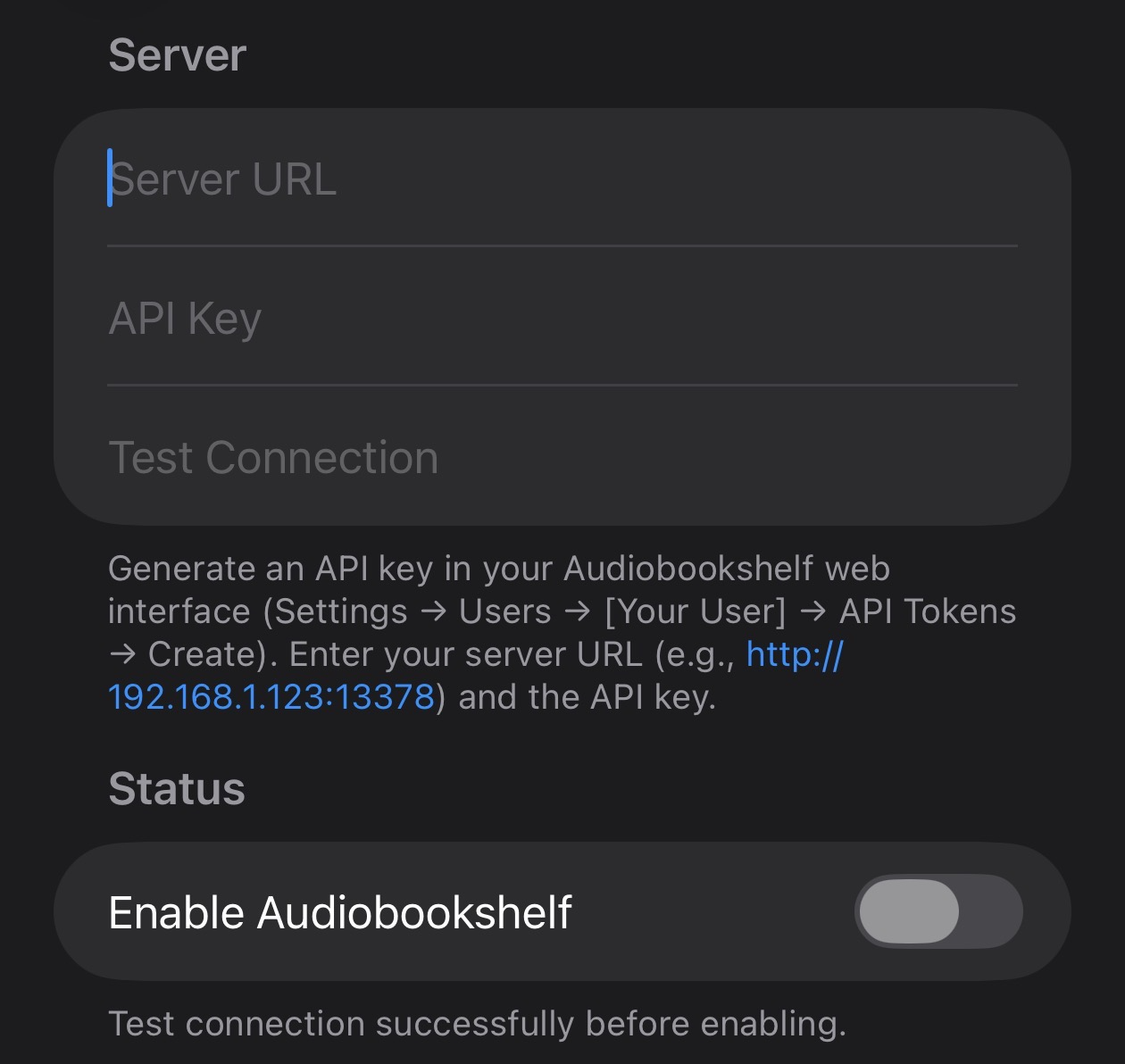
Troubleshooting: Make sure your phone is on the same network as your server. If using a domain, check that DNS resolves correctly. Double-check the API key has no extra spaces.
Tap the moon icon in the player to set a sleep timer. When the timer is about to end, shake your device to extend it if you're not ready to stop listening.
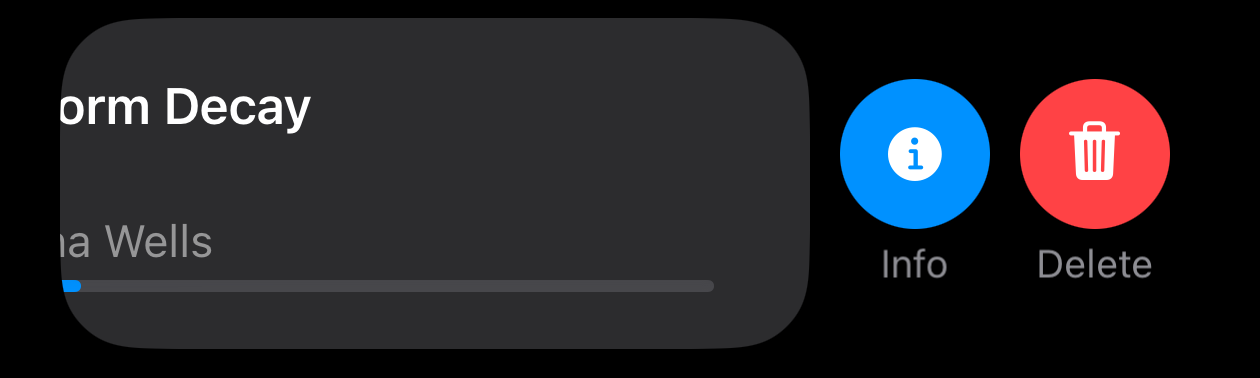
Swipe right on an audiobook in your library to reveal Info and Delete buttons.
Make sure the file is a valid M4B or M4A file. If importing from iCloud, ensure the file is fully downloaded. For very large files, the import may take a moment.
If you can't find the answer to your question above, we're here to help.
Report a bug or request a feature on GitHub:
Report an Issue